
Overview
The Export Control lets you reference a ShapeDiver Export component (Download Export or Email Export) in an App built with the App Builder components. The component links to an Export component by name and lets you override several properties that define the control in the final App.
You can then include the created control in a Controls Widget within the App.
First example
Download an example definition here.
The example below shows a minimal definition with one Download Export component called “Export3dm” that controls the export of a 3dm file of the created Sphere:
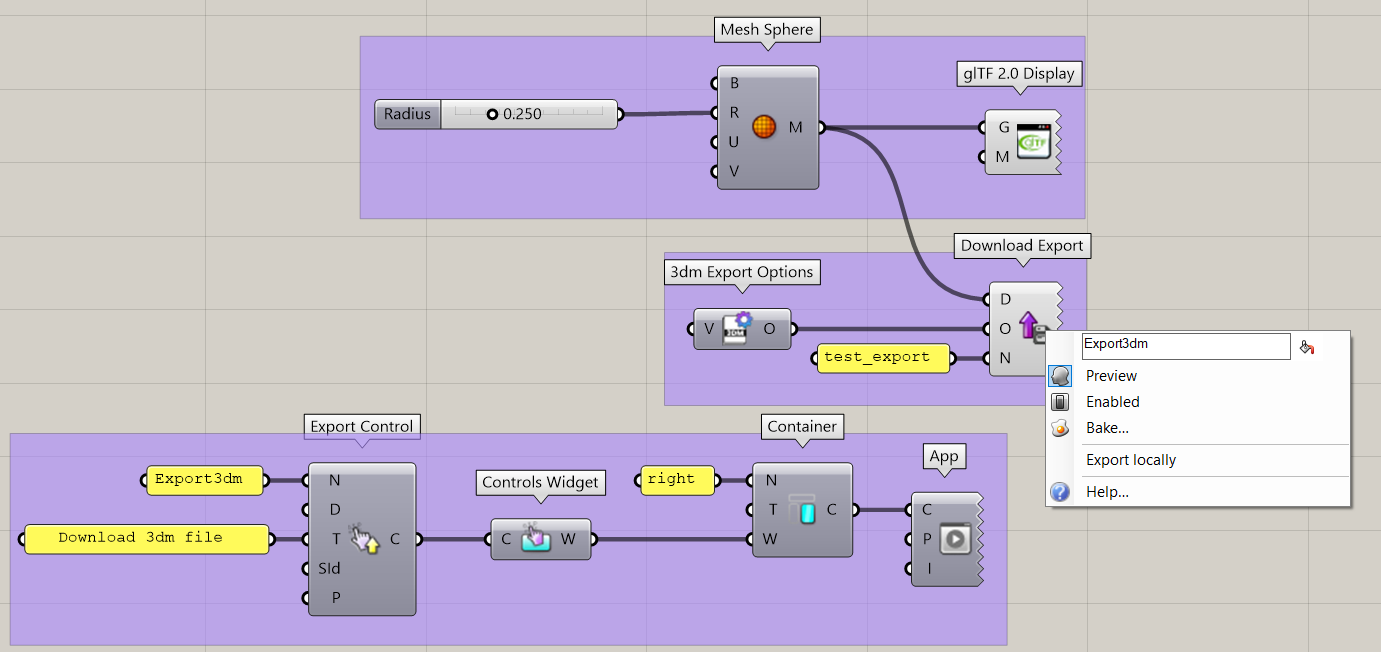
Use the App Builder components to create an App with a single Container on the right. In this container, define a single Controls Widget that contains one Export Control.
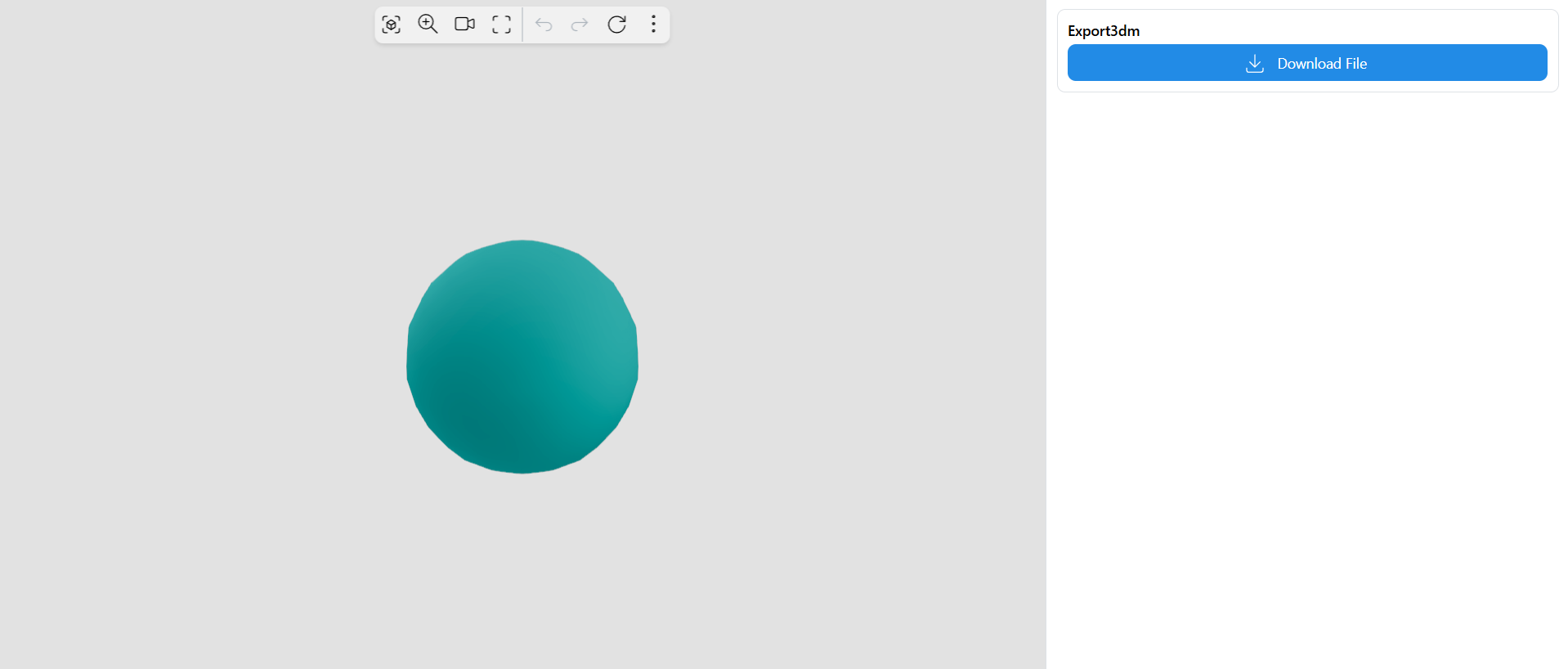
The Export Control references the “Export3dm” export component by its name and defines a tooltip for the control in the App. The resulting App looks like this using the default template:
Properties
In addition to the Name input, you can use the following inputs to customize the control:
-
Display Name (optional): Define a custom name for this export control in the App
-
Tooltip (optional): Add a tooltip to this export control in the App
-
SessionId (optional): The ID of the App session this parameter links to. Leave empty when using a single session.
-
Parameter Values (optional): A list of parameter value objects (created with the Parameter Value component) to include in the export request. See the next section for an example.
Set custom parameter values
Use the “Parameter Values” input to specify a list of parameters that should update to a specific value when you request the export. The App does not update the specified parameters; it uses them only when triggering the export.
Consider the example below, where a slider called “UV Count” controls the number of faces of the created sphere:
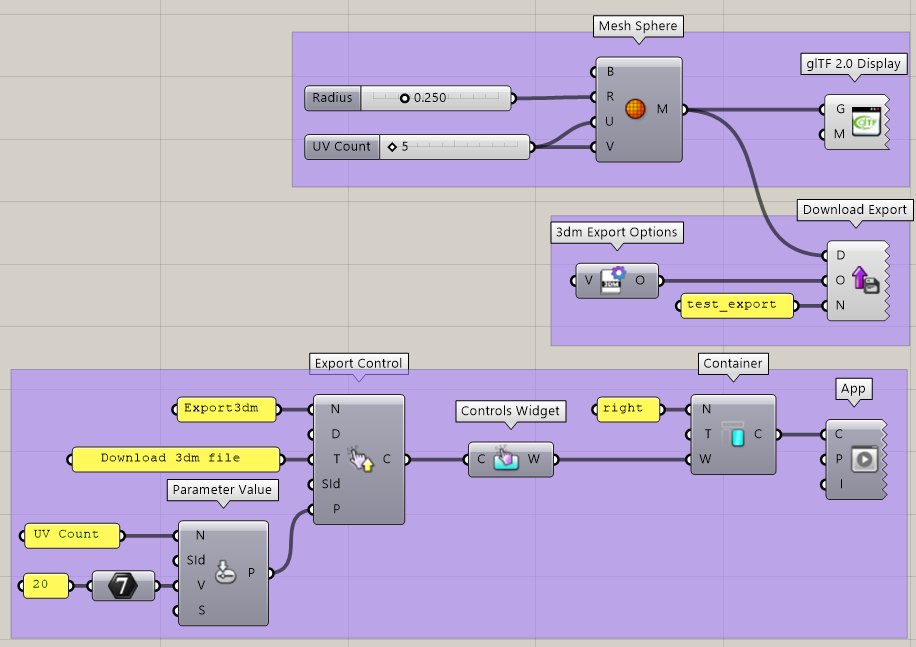
The created App does not show this slider, so it keeps its default value in the App (5) and shows a coarser mesh optimized for display. However, you can use a Parameter Value component with the Export Control to set the “UV Count” parameter to a higher value (20) when you request the export.