
Custom event handlers
The ShapeDiver App for Shopify allows to define custom handlers for a few events. These handlers can be implemented using JavaScript in the Shopify theme. A typical place to implement them is in theme.liquid, but this varies depending on the theme you are using. The custom handler functions need to be exposed as global JavaScript functions (they need to be available on the window or globalThis object). The following table shows the available custom handlers and how to use them.
|
Name of handler |
Purpose |
|---|---|
|
|
Replace the default handler for handling “add item to cart” events. If this handler is specified, it will be called instead of the default handler. This allows to implement specific behavior, like adding items to a quote instead of the cart. JavaScript
In case the handler returns undefined, the standard handler for “add item to cart” will be called. |
|
|
Replace the default handler for handling “update sharing link” (“create model state”) events. If this handler is specified, it will be called instead of the default handler. This allows to implement specific behavior, like saving the model state in a database, etc. JavaScript
In case the handler returns undefined, the standard handler for “updating sharing link” will be called. |
Dynamic URL parameters
For an introduction on URL parameters for App Builder please refer to Embed Apps in external websites.
Static URL parameters for the App Builder iframe can be configured in Shopify - Product Settings and Shopify - Global settings. In addition, it is possible to define global JavaScript functions that are called to resolve the values of URL parameters immediately before the App Builder iframe is loaded. This enables the use of URL parameters whose values depend on user state, etc. To enable this, you define a global JavaScript function in your theme. Let’s assume this function is called MyParamHandler, and you want to use it to set the value of the URL parameter called myparam. To use this function, set the value of the URL parameter whose name is myparam to {{{MyParamHandler}}}. Once the ShapeDiver App for Shopify needs to resolve the value of myparam, it will call your global MyParamHandler function, and use its return value to define the URL parameter called myparam.
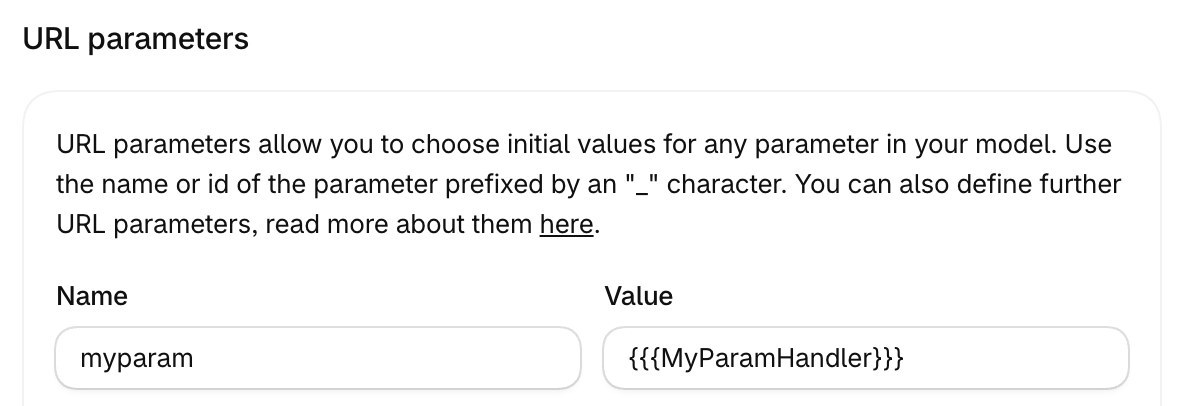
Example code for a handler:
//
// Example handler for providing dynamic URL parameters to
// the App Builder iframe. The first argument to the function
// is the name of the URL parameter for which it is configured.
//
globalThis.MyParamHandler = function (value) {
  console.debug(`Returning value of URL parameter ${value}`)
  return "test-" + value;
};
A handler may also return an object that can be used to define multiple URL parameters. The object may or may not specify a value for the URL parameter name it is configured for:
//
// Example handler for providing dynamic URL parameters to
// the App Builder iframe. The first argument to the function
// is the name of the URL parameter for which it is configured.
// The following example will result in three URL parameters
// called "param1", "param2", and "param3", regardless of the
// parameter name it is configured for.
//
globalThis.MyParamHandlerObject = function (value) {
  console.debug(`Returning values for multiple URL parameters`)
  return {
    param1: "value1",
    param2: "value2",
    param3: "value3",
  };
};
Updating parameter values
It is possible to update parameter values of the App Builder app running inside the iframe. As an example, this can be used to implement custom UI elements in the product page, which allow to switch between preset configurations. The following code example shows how to initiate the update of parameter values:
globalThis.ecommerceApi.updateParameterValues({
  state: {
    ["default"]: {
      "Position": "5,2,5"
    }
  }
});
This updates the value of the parameter called Position for the default session to 5,2,5 and returns a promise which resolves once the parameter update has been completed. Await this promise to check for successful execution and catch potential errors.
Multiple parameter values for multiple sessions can be updated at the same time.
The type definition of the arguments of updateParameterValues can be found here.
Triggering actions
Various actions can be triggered in the App Builder app. Some examples related to camera actions can be found below. For a full list of actions that can be triggered, please see the App Builder action type definitions here.
Assign camera settings from a saved camera state:
await globalThis.ecommerceApi.triggerAction({
  type: "camera",
  props: {
    type: "assign",
    props: { camera: { name: "Top" } },
  },
});
Set the camera position:
await globalThis.ecommerceApi.triggerAction({
  type: "camera",
  props: {
    type: "set",
    props: { position: [1,2,3], target: [0,0,0]  },
  },
});
Reset the camera to its default position:
await globalThis.ecommerceApi.triggerAction({
  type: "camera",
  props: {
	type: "reset",
	props: {},
  },
});
Zoom to extents:
await globalThis.ecommerceApi.triggerAction({
  type: "camera",
  props: {
	type: "zoomTo",
	props: {},
  },
});
Reading data from outputs
getOutput returns the latest content of an output by id, name, or display name. namespace is optional and defaults to the default configurator session.
const reply = await globalThis.ecommerceApi.getOutput({ output: "Price" });
console.log(reply);
The reply has the shape { found, content?, message? }. content is set when found is true.
Please see Outputs on the API for examples on the shape of the content array.