
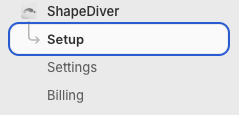
This page guides you through the basic setup of your theme. Start by clicking on ShapeDiver → Setup in your store’s admin panel:
Steps 1 and 2 are automatically carried out by the ShapeDiver App for Shopify. Step 3 - Theme Setup requires your help, but is typically done within a few clicks. Our App comes with two blocks for your theme:
-
the App Builder iframe embed block, that enables the configurator iframe and script in your store
-
the App Builder Button block, that shows a button for opening the configurator on your product page
Initially, the setup guide shows this:

App Builder iframe embed block
Click the “Activate the App Builder iframe embed block” link to add and enable the iframe embed block. Don’t forget to click Save in the upper right corner of the theme editor.
The following settings are available:
|
Setting |
Description |
|---|---|
|
Debug |
Enable debug messages in the browser console. Useful if something doesn’t work as expected. |
|
Show Close Button |
Show a button/icon for closing (hiding) the configurator overlay on the product page. You can replace the default image. |
|
Close Button Image Size |
Size of the close button. |
|
Section IDs |
This allows you to configure the IDs of the theme sections that should be re-rendered after adding items to the cart. |
|
App Proxy Path |
The URL path of your store that should be proxied to the backend of the ShapeDiver App for Shopify. Used for image uploads. Typically you do not need to change this. If you do, make sure to keep this setting in sync with the proxy path you configured for the ShapeDiver App Proxy in your store’s admin panel (Settings → Apps → ShapeDiver → App Proxy). |
App Builder Button Block
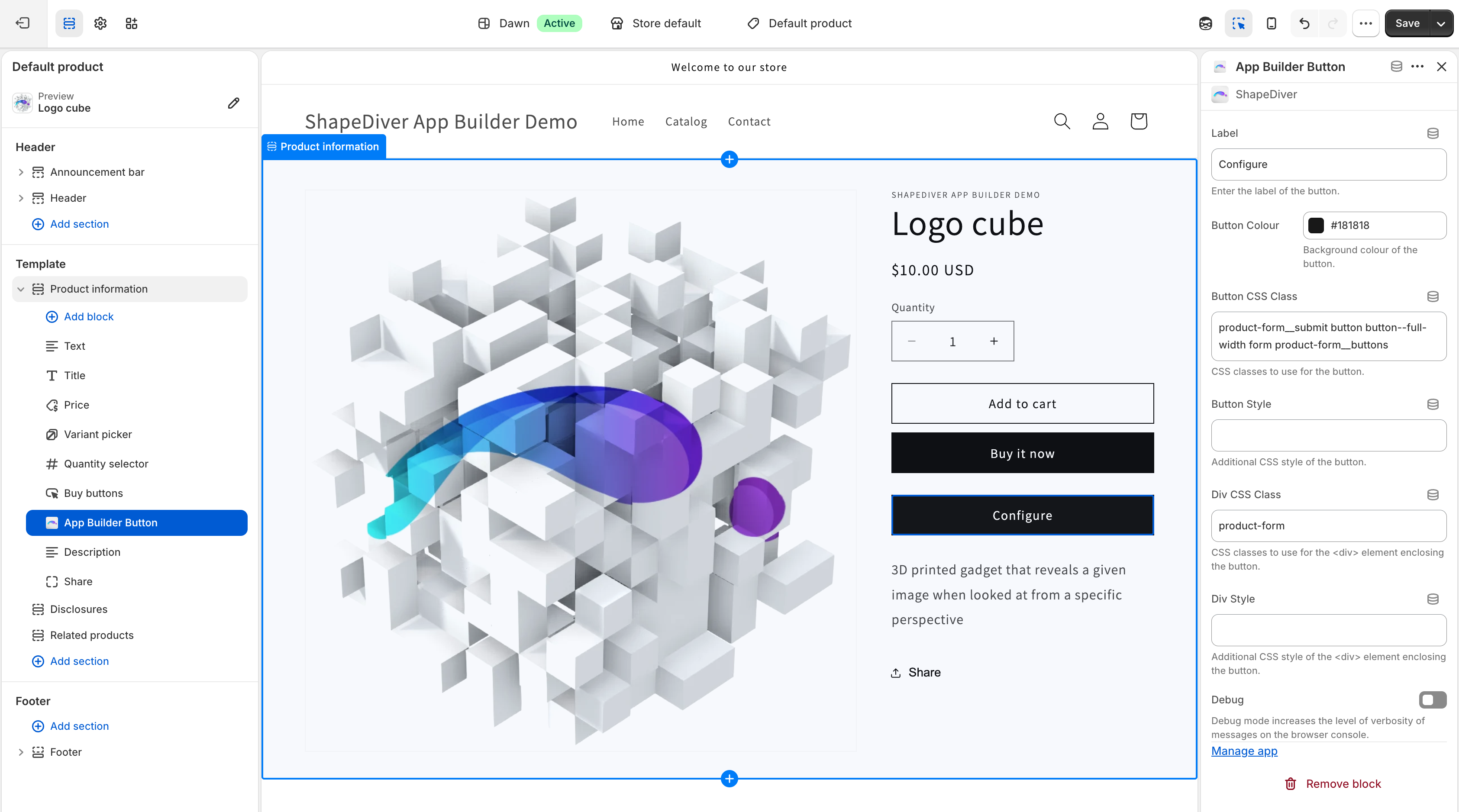
Click the “Add the App Builder Button block” link to add the button block to your product page template. The theme editor opens. Move the button to wherever you want it to appear on your product page. You can configure the button label, color, and CSS settings of the button. This allows you to match the styling of the button to your theme.
Use the Debug setting if you want to enable debug messages in the browser console. This is useful if something doesn’t work as expected.
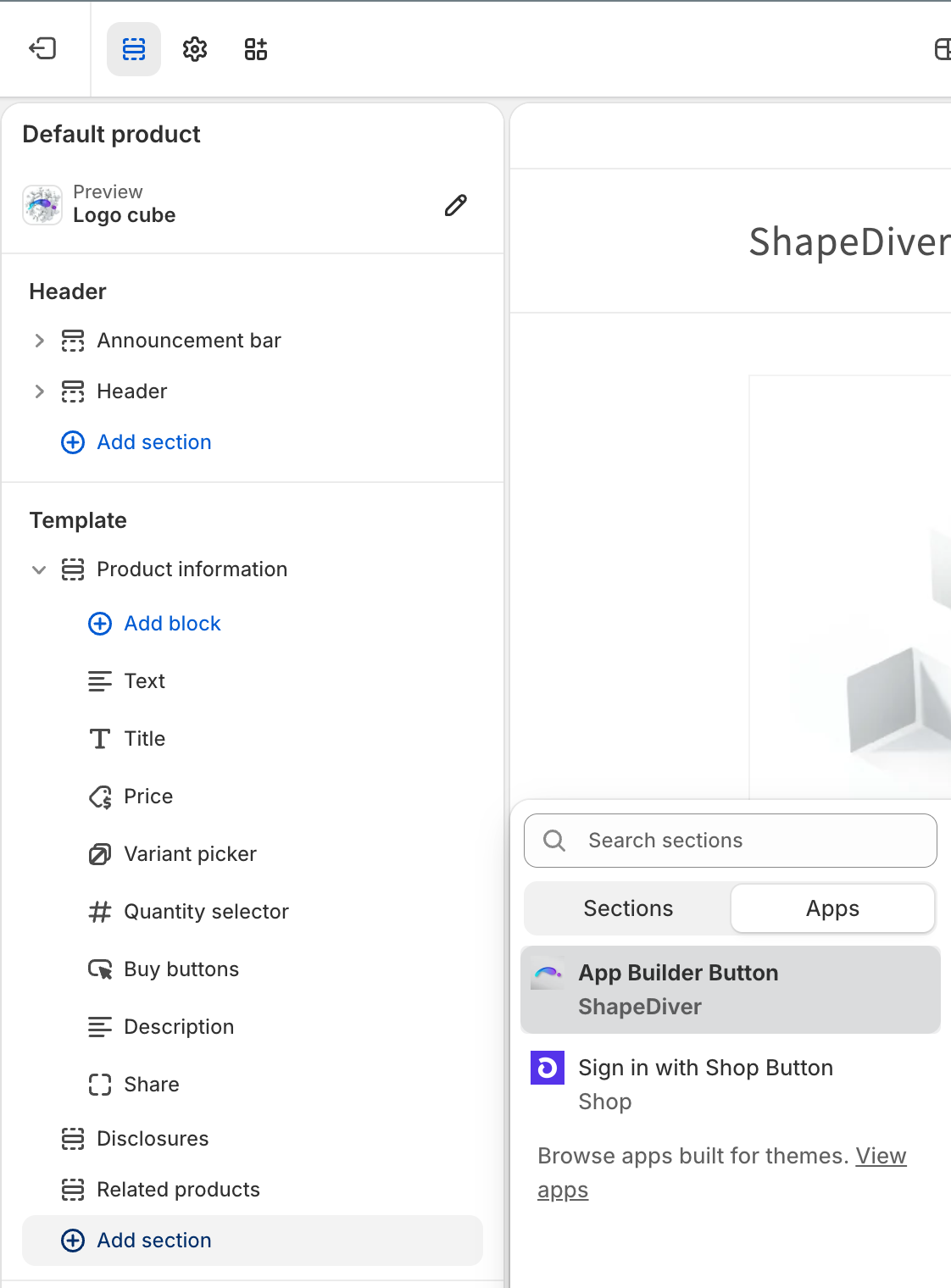
In case you use multiple product page templates, you can manually add the button block to further templates:
Once you are done, don’t forget to click Save in the upper right corner of the theme editor.