
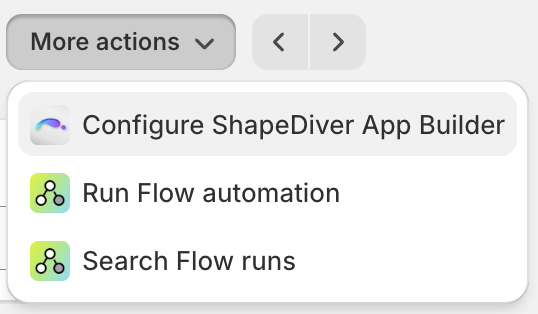
Use your Shopify store’s admin panel to configure App Builder configurators for your products. In the admin panel, navigate to Products, open a product, and click More Actions → Configure ShapeDiver App Builder.
The following dialog opens, showing settings that can be configured:
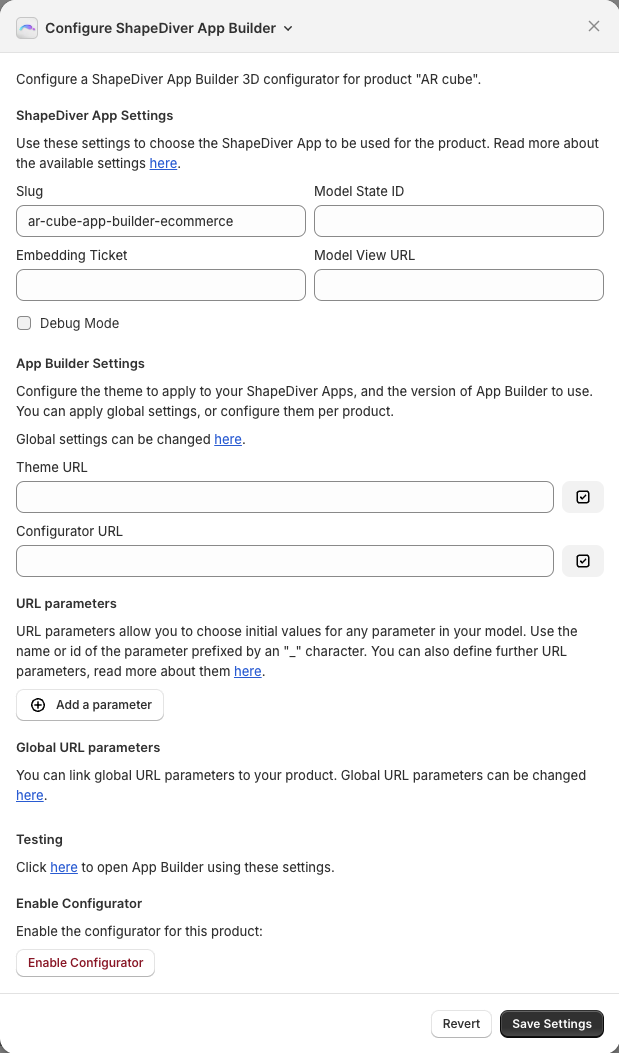
This table contains a description of all available settings:
|
Setting |
Description |
|---|---|
|
Slug |
You can reference your ShapeDiver app either using its slug, or a ticket and model view URL. The slug is the last part of the URL of your model. You can leave this empty if you provide ticket and Model View URL. Make sure to whitelist the domain of your store, and to enable iframe embedding for your model. For previewing your products, you can whitelist |
|
Model State ID |
An optional model state ID of your ShapeDiver model. If left empty, the model's default state will be used. Read more about model states here. |
|
Embedding Ticket |
A ticket for embedding for your ShapeDiver model. If you specify a ticket, you also need to specify the model view URL of your model. You can leave this empty if you provide a slug. Make sure to whitelist the domain of your store, and to enable direct embedding for your model. For previewing your products, you can whitelist |
|
Model View URL |
The model view URL of your ShapeDiver model. If you specify a model view URL, you also need to specify a ticket for embedding for your model. You can leave this empty if you provide a slug. |
|
Theme URL |
Optional URL of the JSON file defining the App Builder settings of the configurator. Use this to configure the theme to be applied to App Builder. This can be a relative or absolute URL. Read more about customizing the theme here. The JSON file can also define the You can use Shopify’s file upload feature to host these JSON files. If you have defined a global default Theme URL, you can link it to the product here. |
|
Configurator URL |
Optional configurator URL for this product. If left empty, the default version of ShapeDiver App Builder will be used, which is https://appbuilder.shapediver.com/v1/main/latest/ Read more about versioning of App Builder here. If you are using iJewel3D, please configure the Configurator URL as described here: ShapeDiver iJewel3D integration If you have defined a default Configurator URL in the global settings of the Shopify app, you can link it to the product here. |
|
Add To Cart Behavior |
Use this to configure how the configurator should behave whenever a customer adds a product to the cart. Optionally, you can apply the globally configured default behavior. |
|
URL parameters |
URL parameters allow you to influence the behavior of your App Builder configurator. Read more about it in section Embed Apps in external websites. It is possible inject custom values for URL parameters, as described in Shopify - Advanced Customization. |
|
Global URL parameters |
You can define URL parameters in the global settings of the Shopify app, and link them to the product. |
After saving the settings for a product for the first time, the configurator will be disabled by default, which means the Configure button will not show up on the product page yet. Click Enable Configurator to activate it.
If you preview a product in the theme editor, the Configure button will show up regardless of whether the configurator is enabled or not.
The settings described above are translated by the Shopify App into an iframe URL for embedding App Builder. You can read more about embedding App Builder apps here.